10-Point Cybersecurity Checklist for Remote Workers
A laptop, a home router, and a café Wi-Fi network are all it takes to run a full workday now. The catch is that the controls your office IT team used to handle — the firewall, the patch cycle, the backup — now sit on your kitchen table. You don't need to become a security engineer. You need ten habits, set up once and rechecked monthly.
None of the items below require special tools or a big budget. Most take under ten minutes. The point is to close the gaps attackers actually use: weak reused passwords, unpatched software, and a rushed click on a message that looked fine.
Lock Down the Network Underneath You
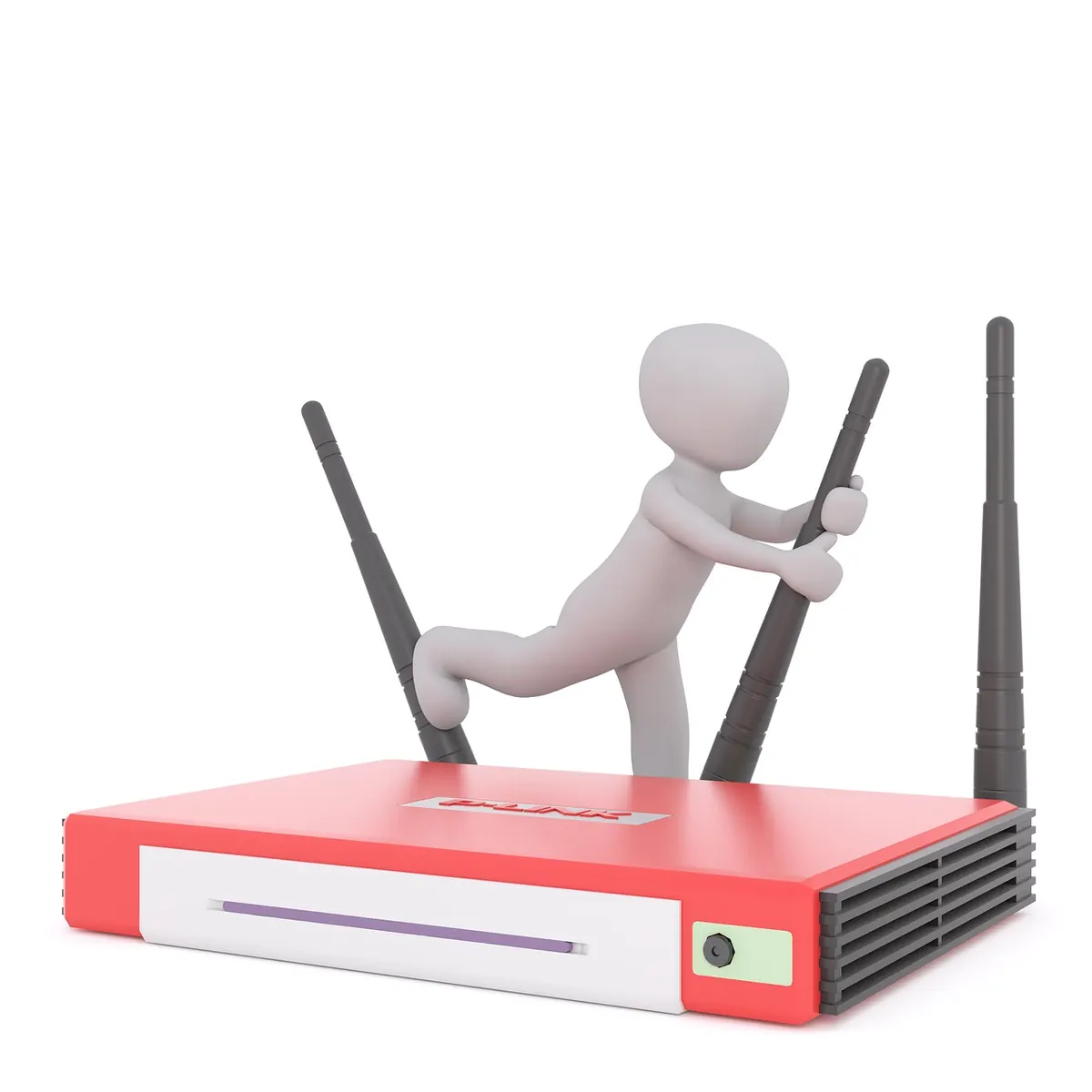
Your router is the front door to every device in the house, and most people have never logged into it. Open the admin panel, change the default username and password, and check that the firmware is current — routers from major brands have had remote-exploit flaws patched through firmware updates. Turn off WPS if it's enabled, since its PIN method is easily brute-forced. If your router supports it, put smart TVs, cameras, and other gadgets on a guest network so an infected device can't reach your work laptop.
Away from home, the risk isn't someone reading your encrypted banking session. It's your phone or laptop silently joining a network named "Free_Airport_WiFi" that a stranger set up. Turn off auto-join for open networks in your device settings. When you truly need one, use your phone's hotspot instead — it's usually faster and far less exposed.
A VPN Is Not a Force Field
A VPN encrypts traffic between your device and the VPN server. That protects you from local snooping on hotel, airport, or shared-office networks. It does not make you anonymous, and it does nothing against a phishing page that asks for your credentials.
Use your employer's VPN whenever you touch company systems, even from home — that's what keeps internal resources off the open internet. For personal travel, a reputable commercial VPN with a kill switch is reasonable. Enable auto-connect on untrusted networks so you don't have to remember.
One Vault, Zero Reused Passwords
Password reuse is how one leaked shopping site turns into a compromised work email. A password manager fixes this, but only if you commit to it fully.
- Memorize one strong passphrase for the vault itself — four or five random words beats a clever substitution every time.
- Let the manager generate the rest. Sixteen-plus random characters, unique per site.
- Fix the important accounts first: email, banking, and anything tied to work single sign-on. Those three unlock everything else.
- Keep a recovery kit offline. Print the recovery code or write it down and store it somewhere physically secure. Cloud-only recovery fails when you're locked out of the cloud.
- Turn on biometric unlock on your phone so the vault is usable in thirty seconds, not three minutes.
Browser built-in managers are better than nothing, but a dedicated app syncs across devices, flags reused and breached passwords, and fills forms reliably. Check your list for duplicates this week; anything reused gets a new password today.
Multi-Factor Authentication, Done Properly
Turn MFA on everywhere it's offered. Then make it resistant to the most common bypass: the fatigue attack, where someone who already has your password spams approval prompts until you tap "accept" out of irritation.
Prefer an authenticator app or a hardware security key over SMS. Text codes still work, but they're vulnerable to SIM-swap fraud. Approve a prompt only when you personally just tried to log in. Save the backup codes somewhere offline — losing your phone shouldn't lock you out of your own accounts.
Patch Everything, Then Restart
Updates are the cheapest security you'll ever get. Turn on automatic updates for your operating system, browser, browser extensions, and every app you use for work. Don't forget the router firmware and your phone.
Restarting matters more than people think. A surprising number of updates only apply after a reboot, so a laptop that has been "sleeping" for three weeks may be running patched-looking but unpatched code. Pick a day — Friday afternoon works — and restart everything.
Finally, retire what no longer gets updates. An old tablet or a laptop stuck on an unsupported OS is a permanent, unpatchable hole on your network.
Treat Urgent Messages as Hostile
Most breaches start with one convincing message: a fake invoice, a "shared document" notification, a message from your boss asking for a quick favor. The signals are consistent — urgency, authority, and a request to click, pay, or hand over credentials.
Verify through a second channel before you act. Call the person using a number you already have, not the one in the message. Check the full sender address rather than the display name, and be wary of QR codes in emails, which now lead to convincing fake login pages that phones can't preview. If something feels off, report it to your IT contact even if you clicked. Speed of reporting matters far more than looking foolish.
Screens, Backups, and Shared Spaces
Lock your screen every time you stand up — Windows+L, or Control+Command+Q on a Mac. In cafés and on trains, a privacy filter costs little and stops the person behind you from reading client data. If you use one machine for both work and personal life, keep separate browser profiles and separate user accounts.
Keep work files in approved company storage rather than personal cloud drives or USB sticks, and confirm your backup routine actually works by restoring one file from it. An untested backup is a hope, not a plan.
The Ten-Point Checklist
- Change your router's default admin password and keep its firmware current.
- Disable auto-join for open Wi-Fi; use a hotspot or your employer's VPN instead.
- Install a password manager and give every account a unique password.
- Enable MFA everywhere, preferring an app or hardware key over SMS.
- Turn on automatic updates for every device, and restart weekly.
- Store work files only in approved company storage.
- Verify unexpected requests through a second channel before acting.
- Lock your screen whenever you step away; use a privacy filter in public.
- Keep a backup you have actually tested restoring from.
- Report anything suspicious to IT immediately, even if you clicked.
Run through the list once now, then diarize fifteen minutes on the first of each month to check it again. If you handle regulated or client data, confirm the specifics with your employer's security policy or a qualified professional — the checklist above is a baseline, not a substitute for your organization's requirements.
Photo: StartupStockPhotos / Pixabay